How to Merge, Compress and Convert PDFs Online
A practical guide to combining PDFs, reducing file size and converting documents before sending them.
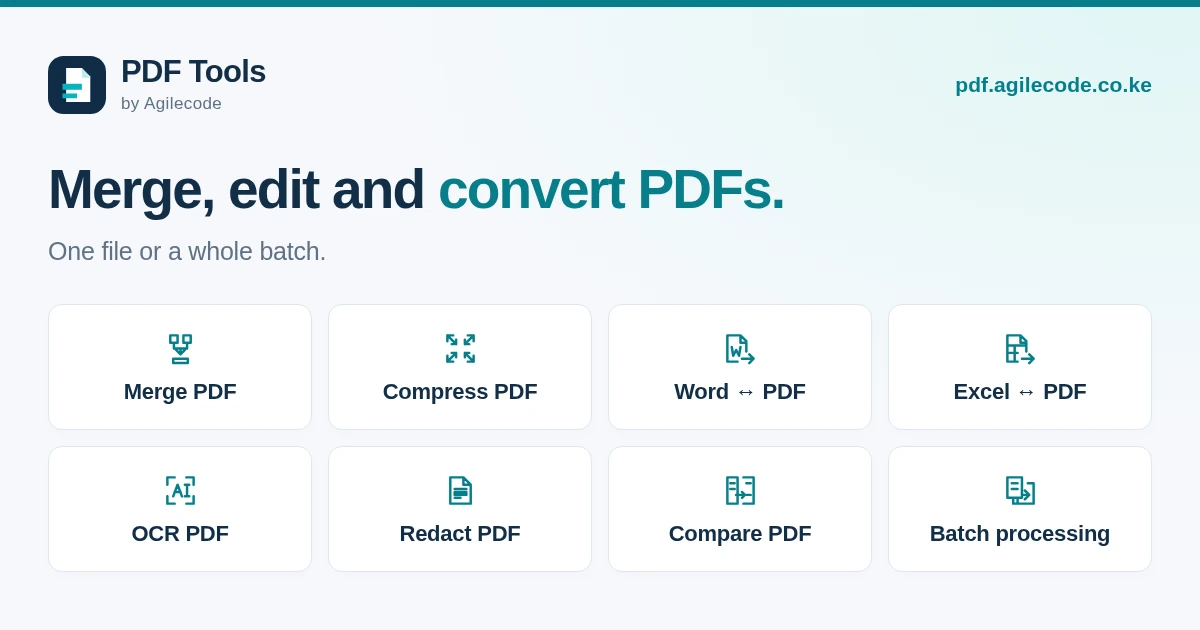
You have finished a document, but sending it often needs one more step. An application portal asks for a single PDF, an email attachment is too large, or a spreadsheet needs to reach someone who does not use Excel. PDF Tools by Agilecode handles these jobs in your browser.
Start with the task you need to complete. Keep your original file, make the change and check the output before sending it. Here are common situations and the tools that fit them.
Combine several documents into one PDF
For a job application, you may have a CV, a cover letter and certificates saved separately. If the employer asks for one file, merge the PDFs into the required order. The same approach works for a proposal with supporting documents or a collection of business records.
- Open Merge PDF and upload at least two PDFs.
- Arrange the files in the order the reader should see them.
- Merge, preview the pages and download the combined file.
Check the first page of each document and remove anything that should not be included. If you only need a few pages from a larger document, split out those pages first. Follow the recipient’s instructions when separate files are required.
Reduce PDF size for an email or upload
Scanned pages and photographs can make a PDF much larger than a document containing mostly text. Compress PDF gives you a choice of image quality. Start with balanced quality, then compare the file size and preview.
Look closely at small print, stamps and signatures. Use higher quality if they become difficult to read. A PDF that is already optimised may not shrink further, so check the actual output size against the recipient’s limit.
Send Word and Excel files as PDFs
Use Word to PDF when you want to share a letter or report as fixed pages. Before converting, check headings, page breaks and whether any unfinished notes remain in the original document.
For spreadsheets, use Excel to PDF. The workbook’s print layout matters. Set the print area, page orientation and scaling in your spreadsheet application, then review the PDF for cut-off columns or extra blank pages.
If you need to edit information from an existing PDF, PDF to Word works with selectable text, while PDF to Excel extracts detected tables. Converted layouts may change, and formulas from the original workbook cannot be recovered from a PDF.
Make a scan searchable
If you cannot select a line of text, the page may be a scanned image. OCR scanned PDFs recognises printed English, Swahili or both and adds a text layer. This makes it possible to search the document or copy recognised text.
For tilted or faded pages, try scan cleanup before OCR. Review names, dates and numbers after recognition; scan quality affects the result. You can then download the searchable PDF and use it with the text-extraction or Word-conversion tool.
Remove details before sharing a copy
A black shape placed over text can still leave the original words inside the file. Use the dedicated PDF redaction tool when selected text or images must be removed from the output. Mark each area, apply the redactions and inspect every page before sharing.
If you have received a revised document, compare the original and revised PDFs. The report highlights detected visual and text changes. It helps you find changed sections; review the documents themselves when subtle differences matter.
Handle several files with the same operation
For several reports that all need compression or conversion, choose Batch processing. Upload compatible files and select one operation. The results are collected in a ZIP, with a separate output for each input file.
Each file in a batch uses one task from the allowance. If payment is needed, the checkout shows both the per-file price and total. You can check the current download options and prices before proceeding.
Check the final file
Open the preview and confirm page order, orientation, text and image quality. Download the result before the expiry shown on the task page, then give it a clear filename that the recipient will recognise.
If you are creating documents from scratch, Invoiced prepares invoices and quotes, and CV Builder helps you prepare a CV. PDF Tools handles the changes you need after a document has been created.
Tell us what you need to build.
Describe your project and the features you need.