How to run an interactive workshop with Padivo
Plan a workshop that moves from shared ideas to a clear next step, using Padivo boards, word clouds, polls and Q&A.
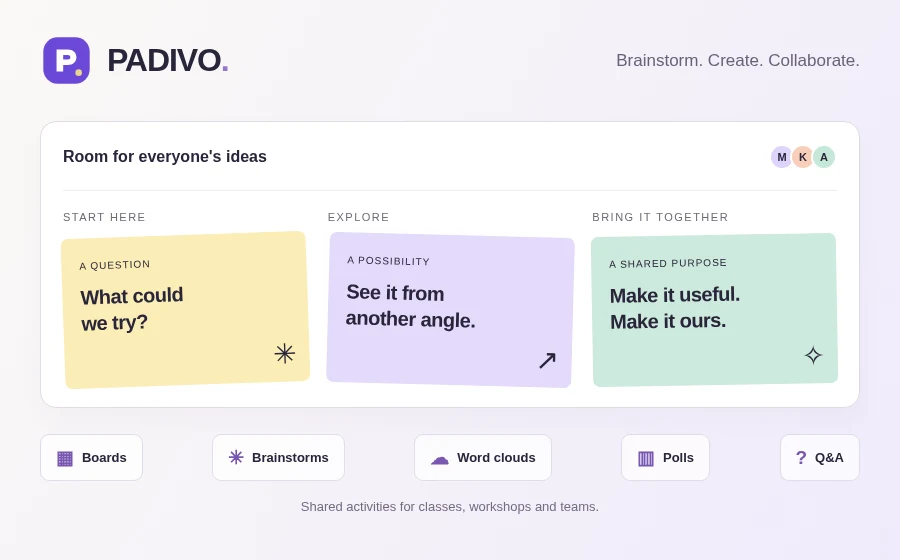
A useful workshop gives people a clear way to contribute and leaves the group with something it can act on. Padivo supports that process with five activity types: Board, Brainstorm, Word Cloud, Poll and Q&A.
This example uses a team planning workshop with the prompt “How can we make our next project handover easier?” Adapt the same sequence for a lesson reflection, a community meeting or a training session. Each exercise is a separate Padivo activity, so prepare the activities before the group arrives.
1. Set up your workspace and access
Sign up at Padivo, verify your email and create a workspace for the session. Add a co-facilitator as an Editor if they need to manage activities and moderation. Workspace membership uses existing accounts; ask a colleague to create and verify their account before adding them.
Choose access for each activity. Private activities are for workspace members. Public or password-protected activities let you share outside the workspace under the settings you choose. Decide whether guests may contribute or whether participants need verified accounts.
Keep activities in draft while preparing them. When an exercise is ready, open it and share its link, join code or QR code. Try the join process in a separate browser session first so you can check what a participant will see, including any password or account requirement.
2. Open with a Word Cloud
Create a Word Cloud with a short prompt: “What makes a handover difficult?” Ask each person for a word or short phrase. Set a response allowance that suits the group; three responses each can give quieter participants room to add more than one thought.
Hide results while people think, then reveal them together. Repeated words and phrases grow larger, making shared concerns easy to spot. Select a word to see its count. Use the cloud as a starting point for discussion: a large word tells you it was submitted repeatedly, but does not explain the reason behind it.
3. Develop ideas on a Brainstorm
For detailed suggestions, create a Brainstorm and add sections such as “What happens now”, “What would help” and “Try next”. Ask for one idea per card, with enough context that someone outside the discussion could understand it.
Participants can add text, links and supported files to cards, then use comments to ask questions or build on an idea. As a facilitator, move cards into the relevant section and group related suggestions. A Board uses the same canvas and also works well when the session is about organising resources or collecting ongoing feedback.
If you enable moderation, review pending contributions before showing them to the group. Changes by contributors can return a card to pending, so keep the moderation queue in view while the discussion continues. Explain this to participants so they understand why an edited card may be waiting for review.
4. Use a Poll for a specific choice
Turn a few actionable suggestions into a Poll. For example, ask “Which change should we try first?” and offer “Handover checklist”, “Shared project notes” and “A short handover call”. Use single selection for one priority, or multiple selections when several options may be useful.
Check the question, choices and selection mode before voting starts. Once votes are submitted, changing these requires a reset, which removes the ballots. Each participant has one final ballot, so explain the choice clearly before asking people to submit.
Reveal results when voting is complete. In a poll that allows multiple selections, each bar is the share of ballots that chose that option, so the percentages can add up to more than 100%. Discuss why the leading choices matter before assigning the next action.
5. Make room for questions
Create a Q&A activity for questions that arise during the workshop. Participants can submit questions and upvote those they also want answered. Sort by most upvoted to find common concerns, or by recent to see what has just arrived.
Review questions when moderation is enabled, and mark a question as answered after discussing it. Upvotes help you decide where to begin, but leave time for a useful question even if only one person raised it.
6. Present and save the outcome
For Word Cloud, Poll and Q&A, open the presentation view in a second window on the shared screen. Keep your activity window available for moderation and facilitation. Presentation follows audience visibility, including hidden results, so reveal only what you are ready to discuss.
At the end, lock or close the activity to stop new contributions. A workspace Owner or Editor can open Insights & PDF to review activity totals and request a PDF. Reveal hidden live results before requesting the export.
Download the completed PDF while it is available. Exports are private to the requesting manager and expire after 24 hours; changes to the activity content, moderation or access can make an earlier export unavailable. Generate a fresh PDF after any final edits, then share the downloaded record with the intended group.
Leave with a decision, an owner and a next step
Before people leave, write down the chosen action, who will take it forward and when the group will review it. Your board and activity exports provide the context, while that short action list makes the workshop useful afterwards.
To combine session PDFs or reduce their file size before sending them, use Agilecode PDF Tools. If you run paid workshops, Invoiced can help you prepare quotes and invoices for clients.
See how Padivo works, visit the Padivo product page or explore the other Agilecode tools.
Tell us what you need to build.
Describe your project and the features you need.